Generate Elevations
Version 3.6Generate Elevations
The Generate Elevations feature automatically creates elevation scenes for your SketchData components. It analyzes the positions and dimensions of your SketchData catalog items, groups parallel faces together, and creates section planes with properly positioned camera views for each elevation.
Requirements
- SketchData components (version 3 catalog items) placed in your SketchUp model
- A Design Tools license for full access (DEMO mode is limited to one elevation)
How to Use
From the Extensions Menu
- Open SketchUp and ensure your SketchData components are placed in the model.
- Choose Extensions > SketchData > Generate Elevations from the menu or toolbar button.
- The SketchData Automatic Elevation Scenes dialog opens with your saved settings.
- Adjust any settings as needed (see Settings Reference below).
- Click Save & Generate to save your settings and create the elevation scenes.
- Your elevation scenes will appear in the Scenes panel with names starting with "SD Elev ".
From the Context Menu (Selection Only)
- Select the specific SketchData components you want elevations for.
- Right-click the selection and choose SD Elevations > Elevate Selection.
- The dialog opens with the button labeled "Save & Generate Selection".
- Adjust settings if needed, then click Save & Generate Selection.
- Only the selected components will be processed.
Settings Reference
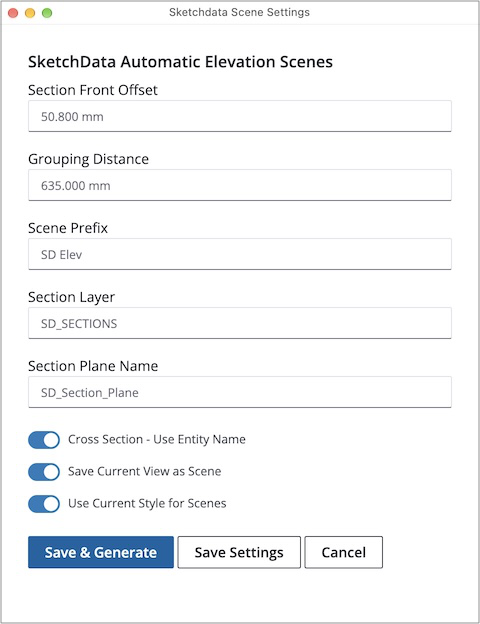
The dialog provides the following configuration options:
Text Fields
Section Front Offset — The distance (in SketchUp units) from the front face of your components where the camera is positioned. Default: 2 inches. Increase this value if you need more space between the camera and your elevation.
Grouping Distance — The maximum distance between parallel component faces that will be grouped into a single elevation scene. Components on parallel planes within this distance are treated as one elevation. Default: 25 inches.
Scene Prefix — The name prefix for all generated elevation scenes. Default: "SD Elev ". Scenes are numbered sequentially (e.g., "SD Elev 1", "SD Elev 2").
Section Layer — The layer name where section planes are created. The layer is automatically created if it doesn't exist and is hidden by default. Default: "SD_SECTIONS".
Section Plane Name — The name assigned to each section plane created during generation. Default: "SD_Section_Plane".
Checkboxes
Cross Section - Use Entity Name — When enabled, cross-section scenes (created via the context menu) use the component's entity name. Default: enabled.
Save Current View as Scene — When enabled, your current camera view is saved as an "SD Default" scene before generating elevations, allowing you to easily return to your working view. Default: enabled.
- This setting generates a new copy of the current view every run, disabling this setting is useful if there is already a modeling scene in the current drawing to avoid duplicating the view multiple times.
Use Current Style for Scenes — When enabled, elevation scenes use your currently active SketchUp style. When disabled, the scenes use the dedicated "SD Elevations" style that includes section cuts and appropriate display settings. Default: disabled (uses SD Elevations style).
Tip: If you enable "Use Current Style for Scenes", make sure your active style has Section Cuts enabled, or the elevations may not display correctly. You'll receive a notification if section cuts are not enabled.
Buttons
- Save & Generate — Saves your settings for future use and immediately generates the elevation scenes.
- Save Settings — Saves your current settings for future use without generating elevations.
- Cancel — Closes the dialog without saving or generating.
What Happens During Generation
- All SketchData version 3 catalog components in the model (or your selection) are analyzed.
- Parallel component faces are grouped based on the Grouping Distance setting.
- A section plane is created for each elevation group, positioned at the Section Front Offset distance from the frontmost face.
- A scene is created for each elevation with the camera looking directly at the elevation.
- The "SD Default" scene (your original view) is created if "Save Current View as Scene" is enabled.
- You are returned to the "SD Default" scene after generation completes.
Troubleshooting
No elevations generated: Ensure you have SketchData version 3 catalog components in your model. Standard SketchUp components or older SketchData items will not be processed.
Elevations look cut off: Increase the Section Front Offset value to move the camera further from your components.
Too many or too few scenes: Adjust the Grouping Distance value. A larger distance groups more parallel faces into fewer elevations; a smaller distance creates more separate elevations.
Section cuts not showing: Verify that your style has Section Cuts enabled, or disable the "Use Current Style for Scenes" checkbox to use the dedicated SD Elevations style.
If you have any questions or need assistance please contact support.