Installation & Setup
Version 3.6Extension Download, Installation & Initial Setup
Extension Installation
- Open the downloads page and click the "Download Extension Version 3.x.y" button to download the latest plugin rbz file.
- Open SketchUp Pro version currently supported by Trimble
- Select "Extensions > Extension Manager" from the SketchUp menu
- Click the "Install Extension" button
- Locate and open the "SketchData Extension 3.x.y.rbz" file downloaded earlier
Product Key Installation
- Product keys are required for licensing authentication with paid plans
- Open the Key Setup Help page to generate an product key for your SketchUp profile
- Login if required
- Enter a key name in the "Name" box and click the "Create" button
- Copy the key that is displayed and paste it into the SketchUp "Extensions > SketchData > Settings" window in the "SketchData Product Key" box and click "Save"
- The settings window will save and refresh your license info, download the latest catalog items, check for an updated extension and update the extension if necessary
Adding SketchData Catalog to Component Browser
1. Copy the catalog folder path
- In SketchUp, open Extensions > SketchData > Settings.
- Click the Copy button. This copies the path of your SketchData catalog folder to the clipboard. Leave it there for step 3.
2. Open the Components tray
- Look for the Components pane in the SketchUp tray on the right side of the window.
- If it isn't there, choose Window > Default Tray and select Components.
- In the Components pane, open the Collections menu (the down arrow next to the home icon) and select Open or create a local collection...
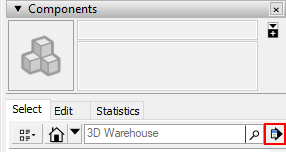
3. Select the catalog folder
A folder selection window opens.
Windows: Paste the copied path into the address bar at the top of the window and press Enter.
Mac: The macOS folder window has no address bar, so use Go to Folder instead:
- Press ⌘ Command + Shift + G to open the "Go to the folder" box.
- Press ⌘ Command + V to paste the copied path, then press Return.
- The window jumps to the SketchData catalog folder. This works even if the folder is inside your hidden
Libraryfolder.
Then click Select Folder (on some versions of macOS this button is labeled Open or Choose) to add the SketchData catalog to your collections list.
Tip (Mac): If ⌘ Shift G does nothing, click inside the folder selection window first and try again.
4. Add the catalog to your favorites (recommended)
Open the Collections menu and select Add to favorites. This keeps the SketchData catalog in your favorites list so it is easy to find.
5. Open the catalog
Click the down arrow next to the home icon in the Components pane and select SketchData Catalog. Your catalog components will appear in the browser.
If the catalog is empty or doesn't appear, run Extensions > SketchData > Download Newest Catalog Items and try again.
Newly downloaded catalog items do not automatically appear in the browser. To view them, click the down arrow next to the home icon in the Components pane and select SketchData Catalog again to refresh the list.
If you have any questions or need assistance please contact support.
Updating the Catalog and Extension
- If an internet connection is present the extension will check for new and updated component items on startup
- New and updated catalog items will be downloaded if an update is available
- Updates can be manually run by opening the "Extensions > SketchData > Download Newest Catalog Items" menu
- The latest catalog items available for your website account will be downloaded to the directory selected under "Component Catalog Folder"